By
By 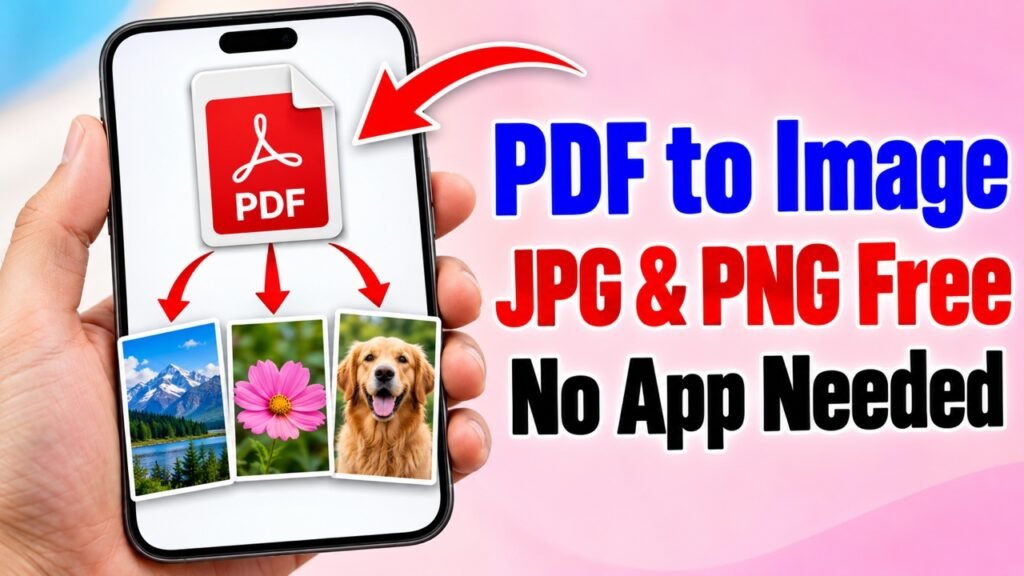
Want to share one page of a PDF on WhatsApp, post it on Instagram or put it in a presentation? Images are easier to view and share than a PDF. In this guide you will learn how to turn every page of a PDF into a JPG or PNG image for free with the Formoni PDF to Image tool. It runs in your browser on phone or computer, and your file is never uploaded.
What can the PDF to Image tool do?
- Turn every page of a PDF into a separate image (up to 100 pages at a time).
- Save as JPG (smaller files) or PNG (sharper text).
- Choose the quality: Normal, High or Very high.
- Download one page or all pages together as a ZIP.
- Free, with no signup, no limit and no watermark.
How to convert a PDF to images, step by step
Step 1: Open the tool and choose your PDF
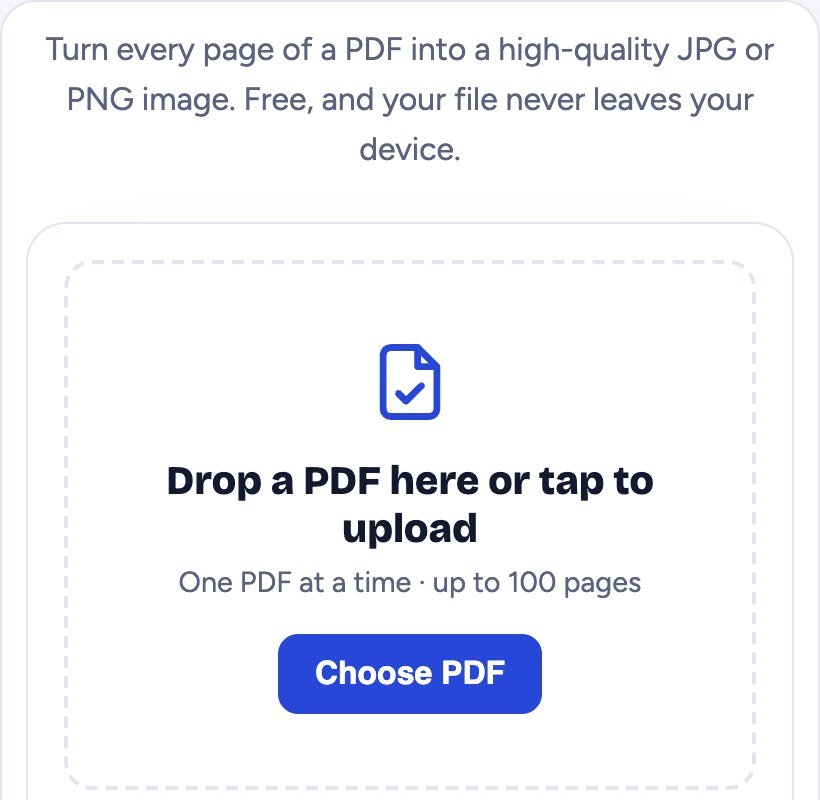
Open the PDF to Image page and tap Choose PDF. On a computer you can also drag the PDF onto the box.
Step 2: Pick the image format and quality
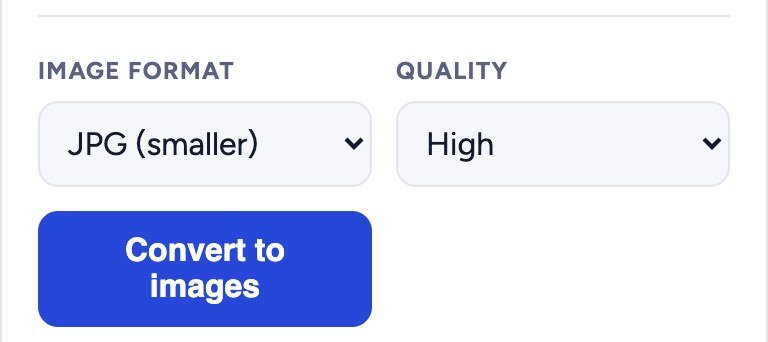
- JPG makes smaller files: best for WhatsApp, email and photos.
- PNG keeps text and lines sharper: best for documents, notes and screenshots.
- Quality: Normal is enough for phones, High for most uses, and Very high when you want to print or zoom into small text.
Step 3: Convert and download
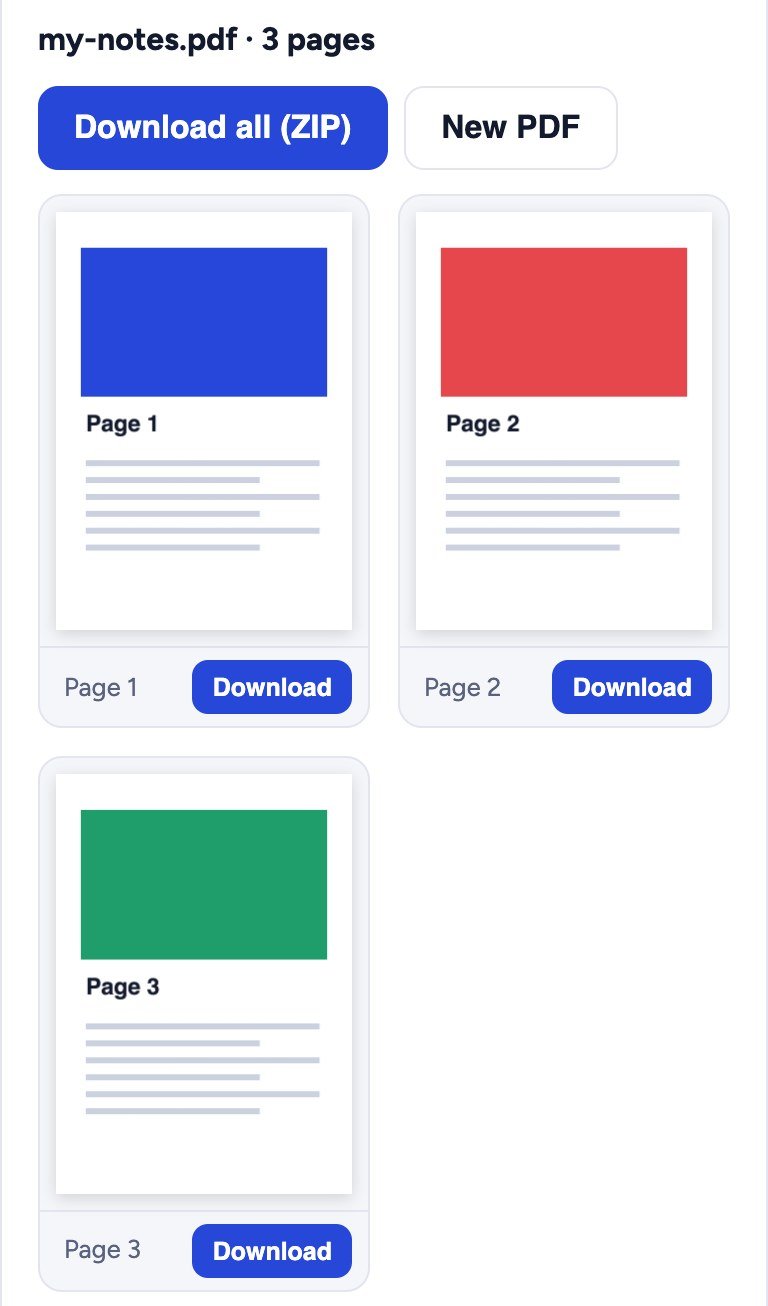
Tap Convert to images. Each page appears as a thumbnail with its own Download button. To get every page at once, tap Download all (ZIP). New PDF starts again with another file.
Useful tips
- Opening the ZIP: on Android open it in the Files app and tap Extract; on iPhone tap the ZIP in the Files app to unzip it.
- PDF asks for a password? Remove it first with Unlock PDF (you need to know the password).
- Want to go the other way? Turn photos back into one PDF with Image to PDF.
- Need only a few pages as a PDF instead? Use Split PDF.
Is my PDF safe?
Yes. The images are made inside your own browser. Your PDF is not sent to any server, so nobody else can see it.
Frequently asked questions
Is the PDF to Image tool free?
Yes, it is completely free, with no signup and no daily limit.
How many pages can it convert?
Up to 100 pages of one PDF at a time. For a longer PDF, the first 100 pages are converted.
JPG or PNG: which should I choose?
JPG for smaller files and photos, PNG for documents with text, where sharp letters matter more than file size.
Does it work on mobile?
Yes. It works in the browser on Android phones, iPhones and computers. You do not need to install an app.
Will the images have a watermark?
No. The images show only your PDF pages, with no watermark or logo.
Conclusion
Converting a PDF to images takes less than a minute: choose the PDF, pick JPG or PNG and the quality, convert, then download one page or all of them. Try it now with the free Formoni PDF to Image tool.