By
By 
Need to send a few photos as one file? A college form, a set of notes, bills for a claim or pages of a document are much easier to share as a single PDF than as ten separate images. In this guide you will learn how to turn images into a PDF for free with the Formoni Image to PDF tool. It works right in your browser on phone or computer, and your photos are never uploaded.
What can the Image to PDF tool do?
- Combine up to 100 images into one PDF.
- Works with JPG, PNG, WEBP and iPhone HEIC photos.
- Pick photos from your gallery or take a photo with your camera.
- Drag to reorder pages, rotate a photo or remove it.
- Choose the page size: same as image, A4 or Letter, with a margin of none, small or large.
- See a live preview: every thumbnail shows how its page will look.
- Choose the quality: HD, Normal or Small file (good for WhatsApp and email).
- Free, with no signup, no limit and no watermark.
How to convert images to PDF, step by step
Step 1: Open the tool and choose your images
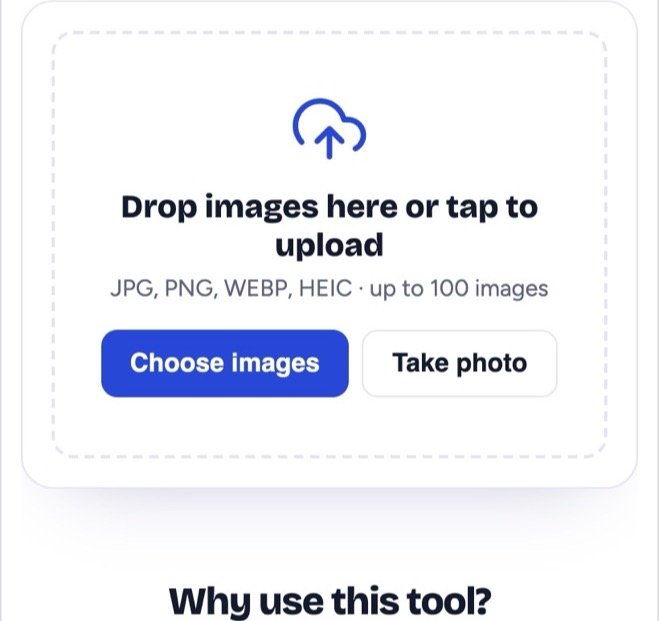
Open the Image to PDF page. Tap Choose images to pick photos from your gallery, or Take photo to use your camera. On a computer you can also drag images onto the box.
Step 2: Arrange the pages
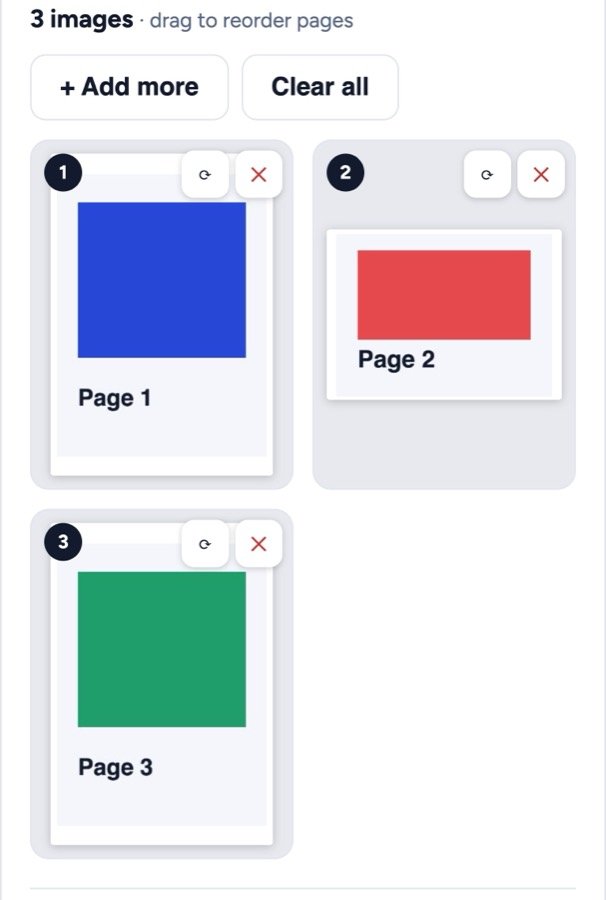
Your photos appear as pages. Drag a thumbnail to change the order. Use the ⟳ button to rotate a photo and ✕ to remove it. Need more photos? Tap + Add more. Clear all starts again.
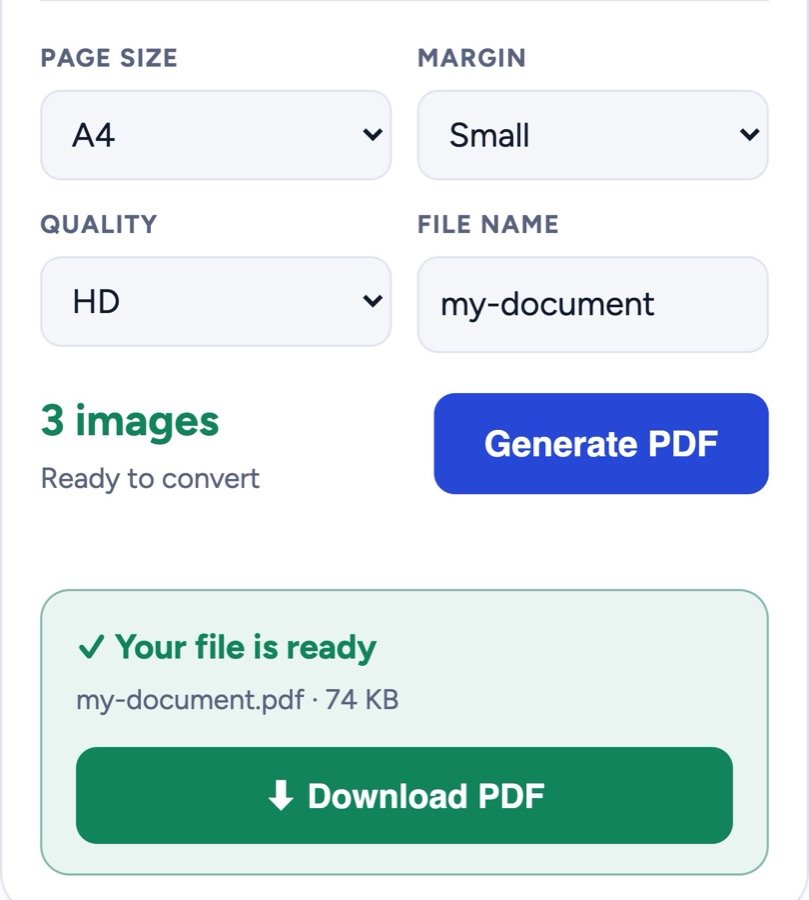
Step 3: Choose page size, margin and quality
- Page size: “Same as image” keeps each photo’s shape. Choose A4 or Letter if you will print the PDF or upload it to a form.
- Margin: adds a white border around each photo. The thumbnails update right away, so you see the result before you make the PDF.
- Quality: HD for the sharpest result, Normal for everyday use, Small file when the PDF must be small for WhatsApp or email.
- File name: type a name for your PDF.
Step 4: Generate the PDF and download it
Tap Generate PDF. When it is ready you will see “Your file is ready” with the file name and size. Tap Download PDF to save it to your phone or computer.
Useful tips
- Sending on WhatsApp or email? Choose Small file. If the PDF is still too big, use Compress PDF.
- Printing, or uploading to a government or college form? Choose A4 with a small margin.
- Scanning paper documents with your camera? Scan to PDF is made for that.
- Already have several PDFs? Join them with Merge PDF.
Are my photos safe?
Yes. The PDF is made inside your own browser. Your photos are not sent to any server, so nobody else can see them. The tool keeps them only in this browser on your device, so a page refresh does not lose your work; tap Clear all to remove them.
Frequently asked questions
Is the Image to PDF tool free?
Yes, it is completely free, with no signup and no daily limit.
How many images can I add?
Up to 100 images in one PDF.
Can I use iPhone photos?
Yes. iPhone HEIC photos work, as do JPG, PNG and WEBP.
Does it work on mobile?
Yes. It works in the browser on Android phones, iPhones and computers. You do not need to install an app.
Will the PDF have a watermark?
No. Your PDF has only your images, with no watermark or logo.
Conclusion
Turning photos into a PDF takes less than a minute: choose your images, arrange them, pick the page size and quality, then generate and download. Try it now with the free Formoni Image to PDF tool.