By
By 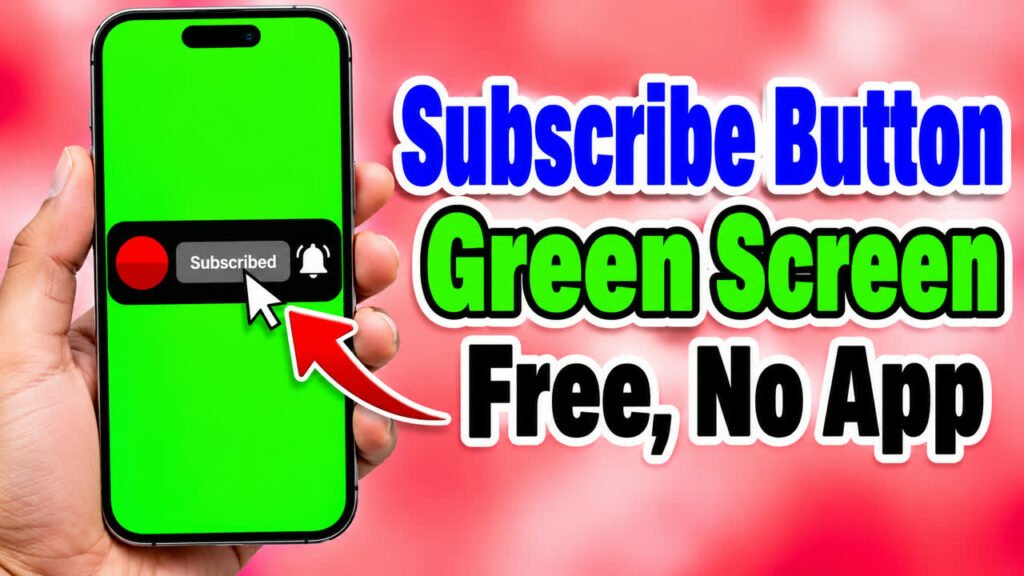
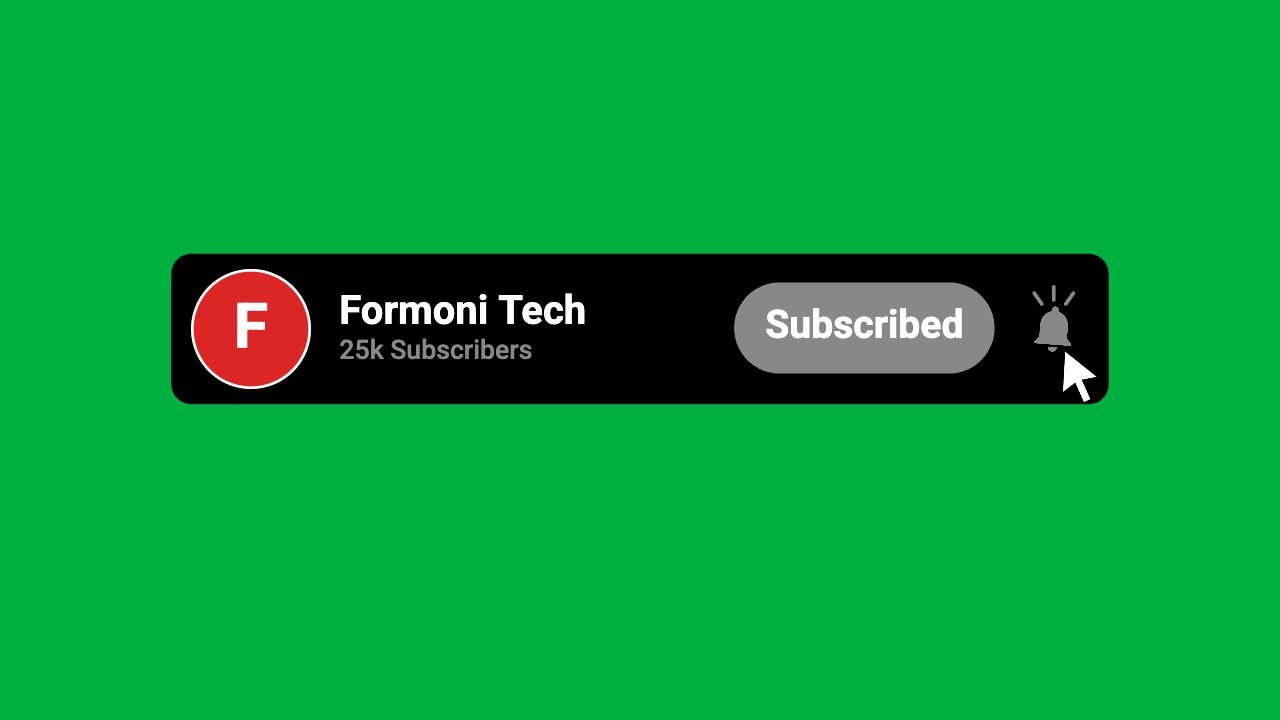
Many YouTubers show a small animated Subscribe button in their videos: a mouse pointer clicks Subscribe, it turns grey and says Subscribed, and then the bell icon rings. In this guide you will learn how to make your own green screen Subscribe button with your channel name, subscriber count and logo, for free, with the Formoni Subscribe Button Maker. It runs in your browser on phone or computer: no app, no watermark and nothing is uploaded.
What you get
- A 5.5 second animation: the card slides in, the cursor clicks Subscribe, the button becomes Subscribed, the bell rings, and the card goes away.
- Your channel name, subscriber count and logo on the card. Long names fit: the card grows.
- Click and bell sounds in the video (you can turn them off).
- MP4 video, 16:9, 60 FPS, in 720p or 1080p (4K too on devices that can make it).
- Background in green, blue or black, ready to remove in any video editor.
- Free, with no signup and no watermark.
How to make your Subscribe button, step by step
Step 1: Type your channel name and subscriber count
Open the Subscribe Button Maker. Type your channel name. In Subscriber count write only the number, like 1.2k, 25k, 1L or 1M. The word “Subscribers” is added for you, so it is never misspelled.
Then tap Choose logo and pick your channel logo. Drag it inside the circle to move it and use the slider to zoom. No logo? The first letter of your channel name is shown in a coloured circle. The preview at the top changes as you type.
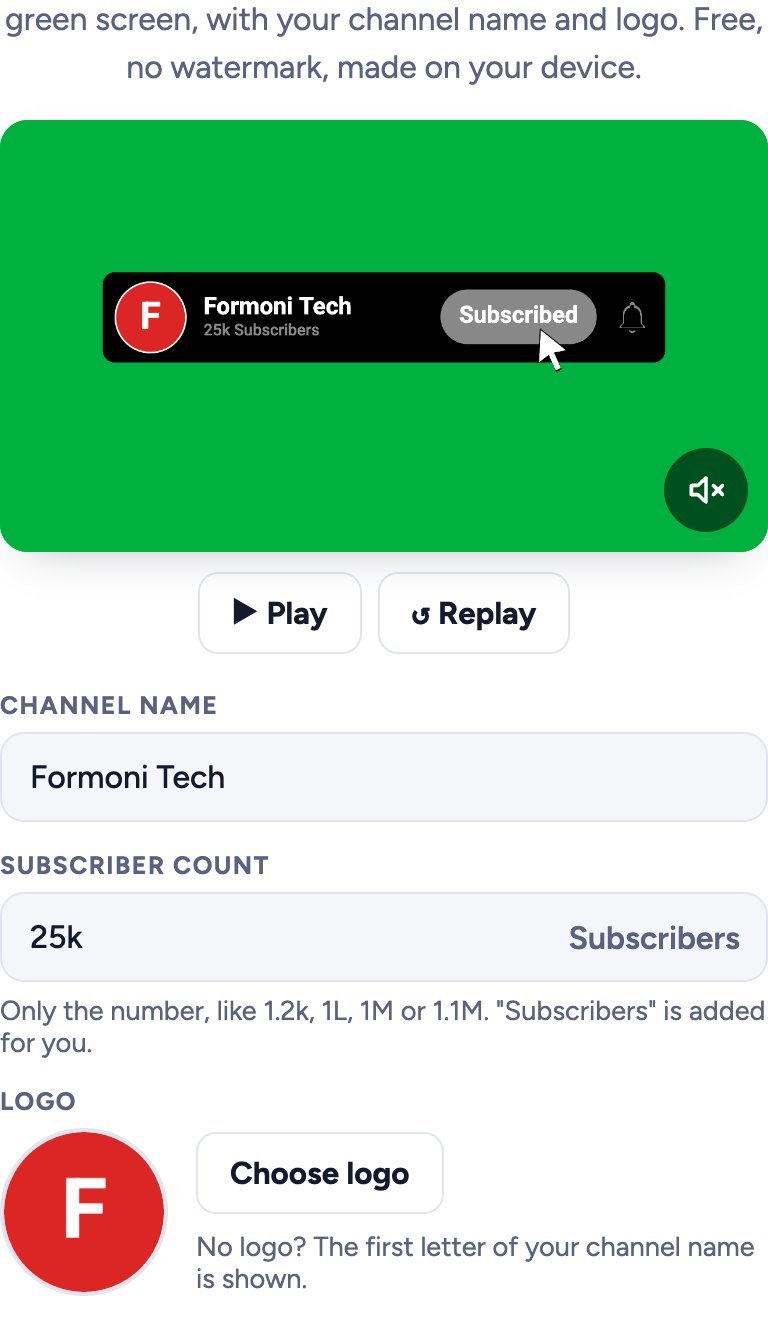
Step 2: Pick the look and the sound
- Mode: Dark (black card) or Light (white card).
- Background: Green works in most editors. Use Blue if your video has a lot of green, or Black for the “Screen” blend mode.
- Bell icon, Mouse cursor and Sound: turn each one on or off.
- Video quality: 1080p is right for most YouTube videos. Choose 720p if your phone is slow.
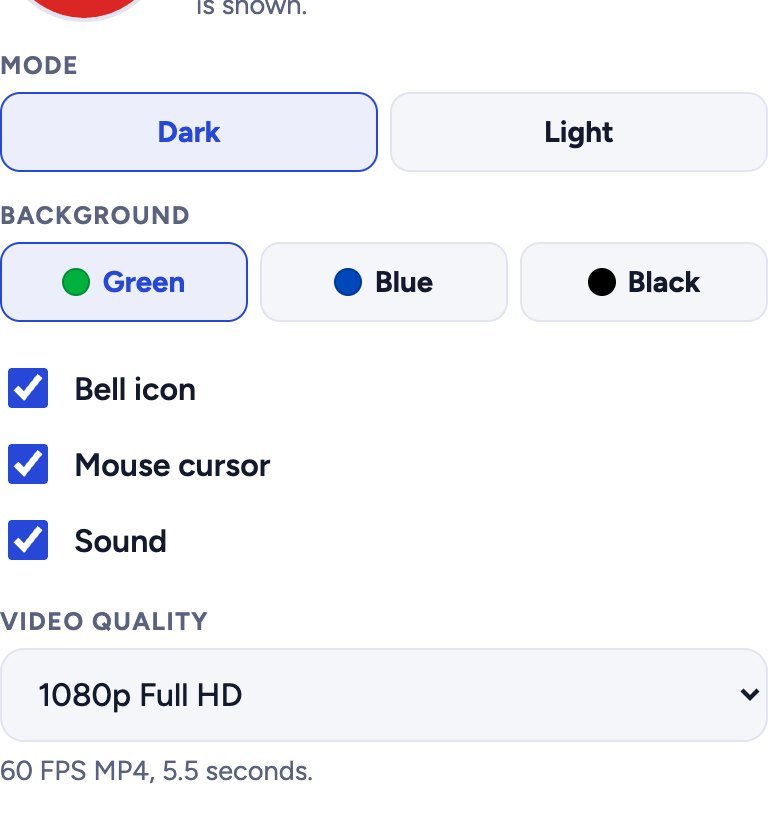
Step 3: Create the video and download it
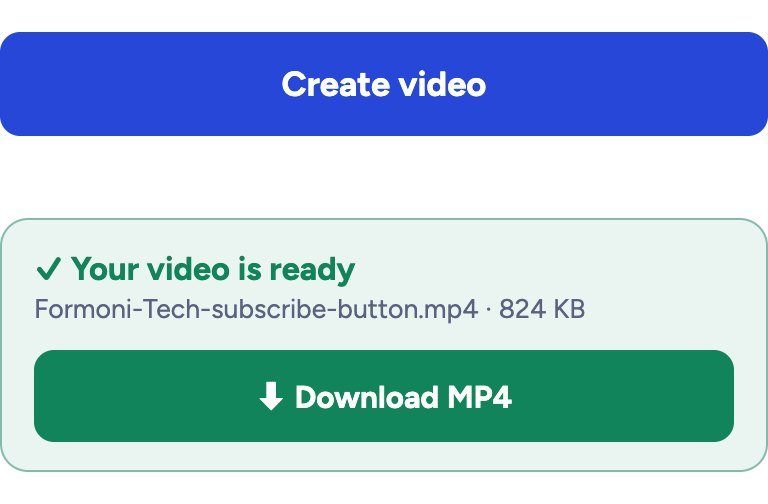
Tap Create video. It takes only a few seconds. When the green box says Your video is ready, tap Download MP4. The file is named after your channel, for example Formoni-Tech-subscribe-button.mp4.
How to put the Subscribe button on your video
Every good video editor can remove a green background. The steps are almost the same in all of them:
- Open your video in CapCut, KineMaster, VN, Premiere Pro or any editor.
- Add the Subscribe button MP4 as an Overlay (a layer above your video).
- Choose Chroma key (also called Remove color or Green screen) and pick the green colour. The background disappears.
- Move and resize the button where you like, usually near the bottom of the screen.
With the black background, use the Screen blend mode instead of chroma key. Black disappears and the button stays.
Tips for more subscribers
- Show the button in the first 30 seconds or right after you give something useful, when viewers are happiest.
- Say it out loud too: “If this helped you, subscribe and press the bell”.
- Use it once or twice per video, not all the time.
- Keep your subscriber count honest: update it when your channel grows.
Is it safe? Is my logo uploaded?
No upload happens. The video is made inside your own browser, so your logo and channel details stay on your device.
Frequently asked questions
Is the Subscribe Button Maker free?
Yes. It is completely free, with no signup and no watermark.
Can I use it on my phone?
Yes. It works in Chrome, Edge and Safari on Android phones, iPhones and computers.
Can I change the button text to Hindi?
The button says “Subscribe” and “Subscribed” in English, like on YouTube. Your channel name can be in any language.
Why is 4K not shown?
4K appears only when your browser and device can make a 4K video. 1080p is enough for most YouTube videos.
Does the video have sound?
Yes: a click when the button is pressed and a bell sound. Untick Sound if you want it silent.
Conclusion
An animated Subscribe button reminds viewers to subscribe without breaking your video. Make yours in a minute with your name, subscriber count and logo, download the green screen MP4, and add it with chroma key. Try it now: free Formoni Subscribe Button Maker. For quiz channels, also see our GK Quiz Video Maker.