By
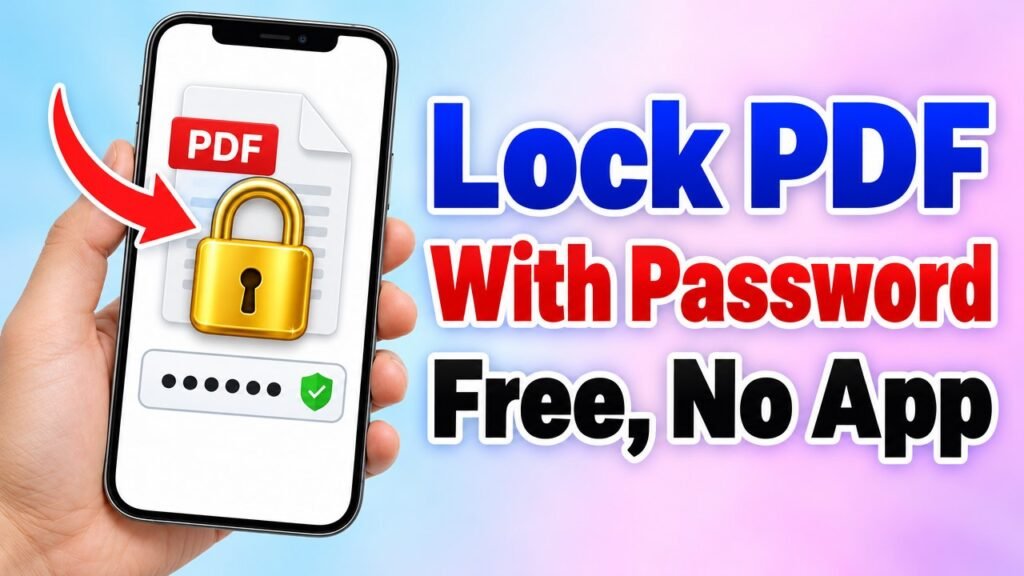
Salary slips, bank statements, Aadhaar or PAN copies, mark sheets and office reports often hold private details. Before you email or share such a file, it is a good idea to put a password on the PDF. With the free Formoni Protect PDF tool you can lock a PDF with a password on your phone or computer in a few seconds. Nobody can open the file without the password. No app, no signup, and your PDF and password are not uploaded anywhere.
How to password protect a PDF, step by step
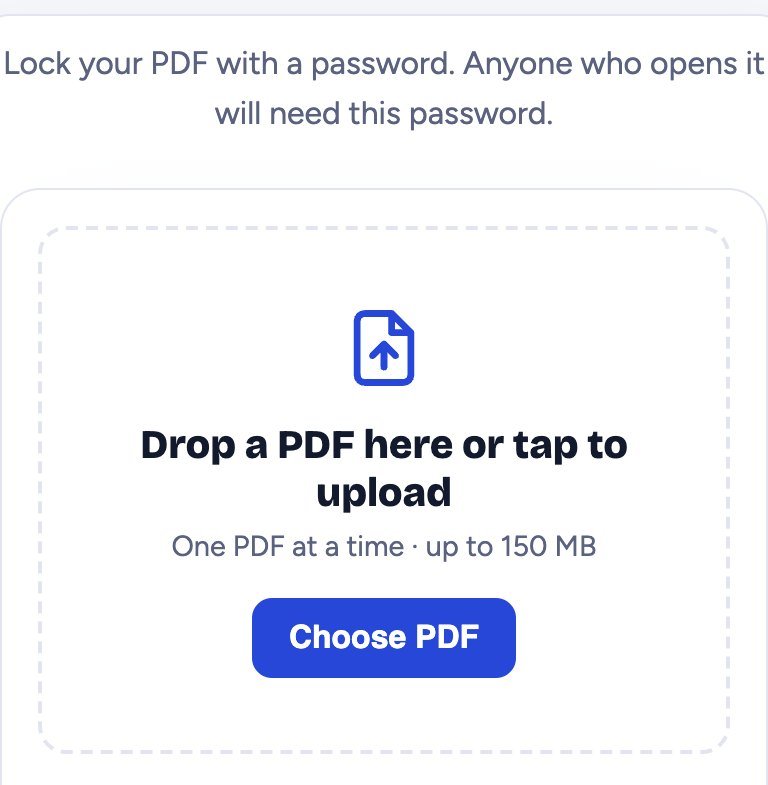
Step 1: Choose your PDF
Open Protect PDF and tap Choose PDF. Pick the file you want to lock (up to 150 MB). Its name, pages and size are shown at the top.
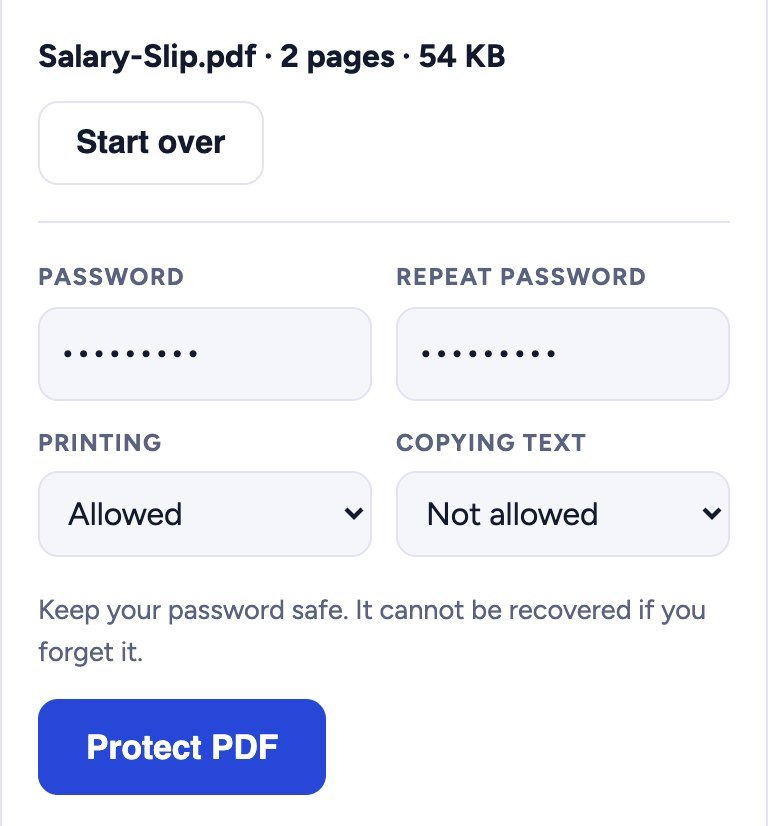
Step 2: Type a password and choose what is allowed
- Password and Repeat password: type the same password twice (at least 4 characters). Typing it twice stops spelling mistakes.
- Printing: choose Not allowed if people should only read the file, not print it.
- Copying text: choose Not allowed to stop people copying the text out of the file.
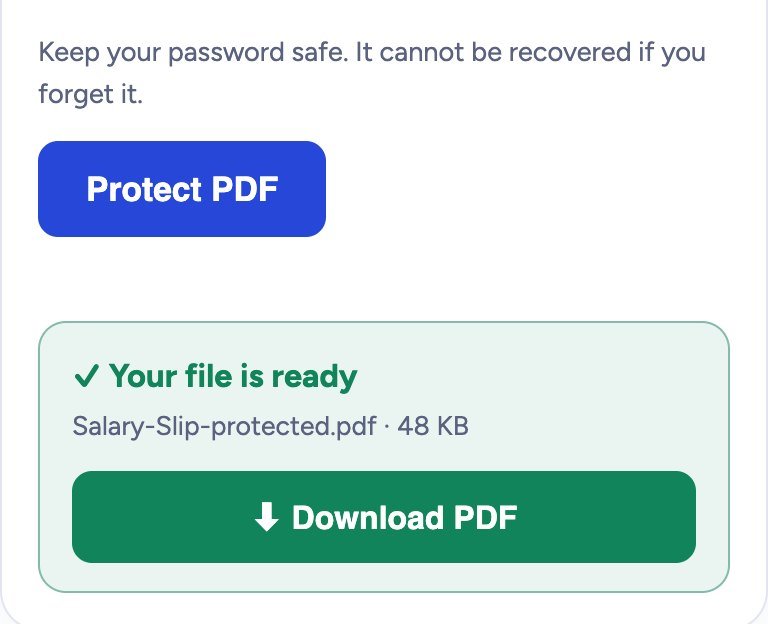
Step 3: Lock the PDF and download it
Tap Protect PDF. In a second a green box says Your file is ready; tap Download PDF. The new file is named like yourfile-protected.pdf. Your original file is not changed.
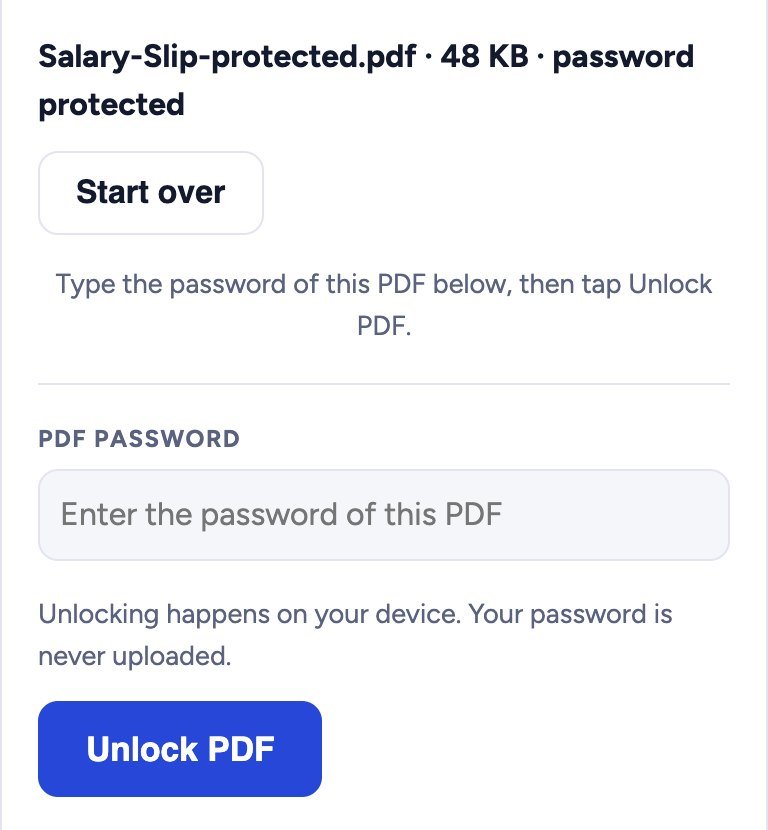
Step 4: Check it
Open the new file. Every PDF reader (Chrome, Adobe Acrobat, the phone file viewer) now asks for the password first. Below, we opened the locked file in our Unlock PDF tool: it shows password protected and asks for the password.
Is it safe?
Yes. The file is locked inside your own browser with strong AES-256 encryption, the same kind banks use for their PDF statements. Your PDF and your password are never sent to our server, so nobody else sees them.
Good to know
- Do not forget the password. It cannot be recovered, by us or anyone else. Keep your original file or write the password somewhere safe.
- Share the password in a different way than the file, for example send the file by email and the password by phone or SMS.
- Use a password that is hard to guess: mix letters, numbers and a symbol. Avoid only your name or date of birth.
- The Printing and Copying settings are followed by most PDF apps, but some apps ignore them. The password to open the file is the real protection.
Tips
- File too big to email? First make it smaller with Compress PDF, then add the password (a locked PDF cannot be compressed).
- Want to join several files into one locked file? Use Merge PDF first, then protect the result.
- Need to sign the document? Use Sign PDF first and lock it at the end.
- Want to remove a password you know? Use Unlock PDF.
Frequently asked questions
Is Protect PDF free?
Yes. It is completely free, with no signup, no daily limit and no watermark.
Can I put a password on a PDF on my phone?
Yes. It works on Android phones, iPhone and computers in Chrome, Edge, Firefox and Safari. No app is needed.
What if I forget the password?
The password cannot be recovered. Formoni never sees or saves it. Keep a copy of the original PDF without the password in a safe place.
Can I remove the password later?
Yes, if you know it. Open Unlock PDF, type the password and download a copy without it.
Will the file look different after locking?
No. Pages, text, images and links stay exactly the same. Only a password is added.
Conclusion
Locking a PDF takes a few seconds: choose the PDF, type a password, tap Protect PDF and download. Your private documents stay safe when you share them, and the file never leaves your device. Try it now: the free Formoni Protect PDF tool.