By
A wrong date on a form, a missing name, a line you want to mark, or a stamp you need to add: small changes like these should not need printing and scanning. With the free Formoni Edit PDF tool you can edit a PDF online on your phone or computer: add text, cover mistakes with white-out, highlight lines and insert an image on any page. No app, no signup, no watermark, and your PDF is not uploaded anywhere.
What you can do with Edit PDF
- Text: type anything (a name, a date, a note) and tap where it should go. Choose the size and the colour (black, blue, red or green).
- White-out: drag a white box over a mistake to cover it, just like correction fluid on paper.
- Highlight: drag over a line to mark it in yellow.
- Image: add a photo, logo or stamp and choose its size.
How to edit a PDF, step by step
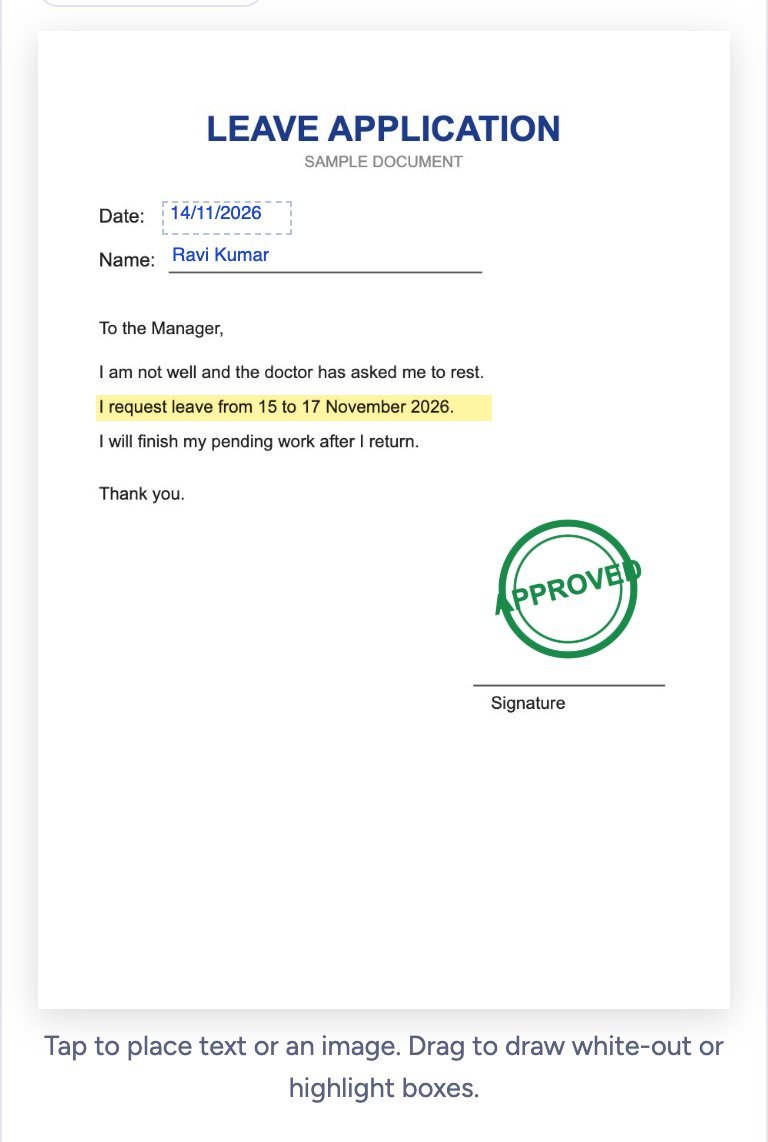
In this example we fix a leave application: the date is wrong and the name is empty.
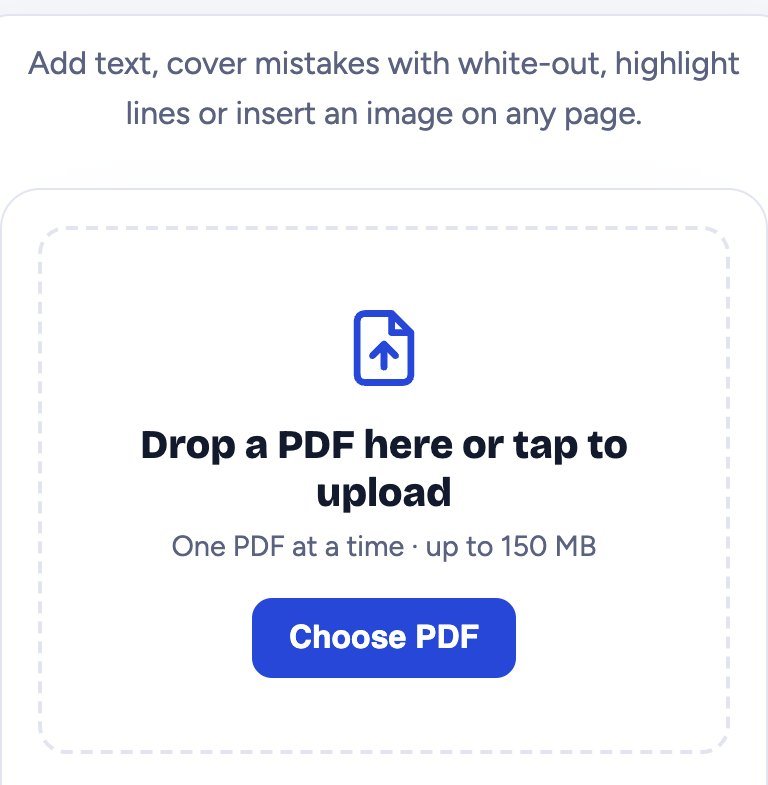
Step 1: Choose your PDF
Open Edit PDF and tap Choose PDF. Pick your file (up to 150 MB). The first page opens big on the screen. For other pages, use the Page list.
Step 2: Pick a tool and set the text
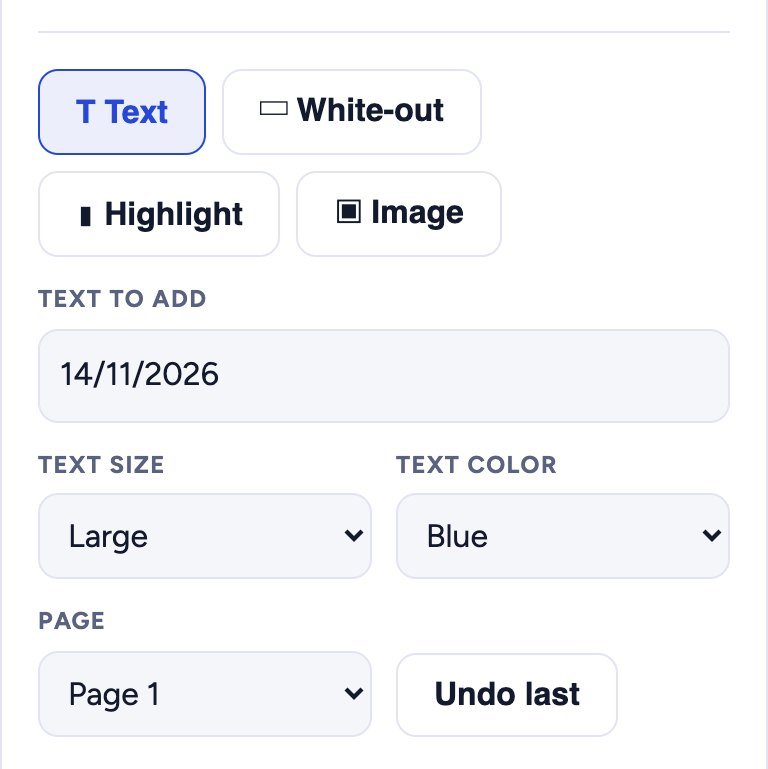
Tap White-out and drag a box over the wrong date to hide it. Then tap Text, type the correct date in Text to add, choose the Text size and Text color, and tap on the page where it should go. Do the same for the name. Made a mistake? Tap Undo last.
Step 3: Check the page
Everything you add shows on the page right away. Here the old date is covered, the new date and the name are typed in blue, one line is highlighted and an “Approved” stamp image is added. Tap Highlight and drag over a line to mark it; tap Image, choose a picture and tap where it goes.
Step 4: Create the edited PDF and download it
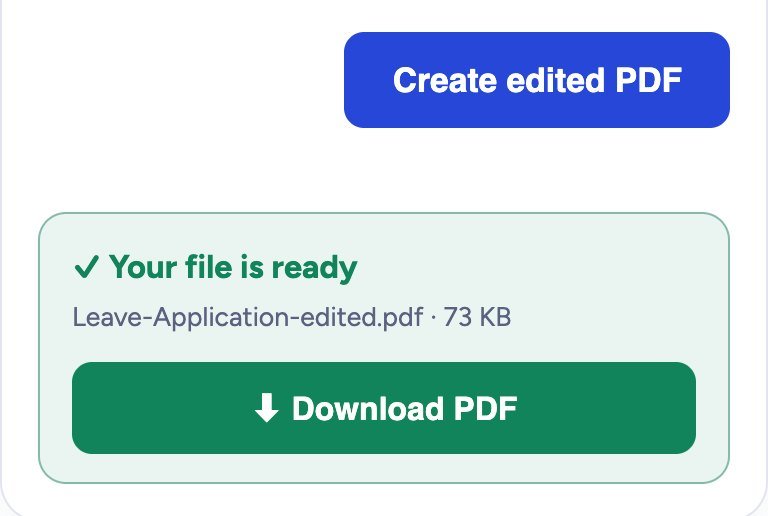
Tap Create edited PDF. A green box says Your file is ready; tap Download PDF. The new file is named like yourfile-edited.pdf. Your original file is not changed.
Important: what this tool does not do
- It adds things on top of the page. It does not change the words that are already in the PDF. To “change” a word, cover it with white-out and type the new word on top, as shown above.
- White-out only hides text from the eye. The old text is still inside the file and can be copied out. To remove private details for good (account numbers, Aadhaar numbers, addresses), use Redact PDF instead.
- Edit only your own documents or documents you are allowed to change. Never change official papers like certificates, mark sheets or bills to show something that is not true.
Is it safe?
Yes. Your PDF is edited inside your own browser. It is never uploaded to our server, so nobody else can see it.
Tips
- Your text starts where you tap (its top-left corner), so tap just at the start of the line. Not right? Tap Undo last and tap again.
- Use blue text for filled details: it looks like a pen and is easy to see.
- Hindi and other languages can be typed too. They are added to the page as a clear text picture.
- If the PDF has real form boxes, PDF Forms fills them more neatly. To add your signature, use Sign PDF.
- File too big after adding images? Make it smaller with Compress PDF.
Frequently asked questions
Is Edit PDF free?
Yes. It is completely free, with no signup, no daily limit and no watermark.
Can I edit a PDF on my phone?
Yes. Tap on the page to add text or an image, and drag with your finger to draw white-out or highlight boxes. It works on Android phones, iPhone and computers.
Can I change the existing text of a PDF?
Not directly. Cover the old text with white-out and type the new text on top of it. The result looks like the text was changed.
Can I edit more than one page?
Yes. Choose another page in the Page list and keep editing. All changes on all pages are saved together when you create the PDF.
Can I edit a password protected PDF?
First remove the password with Unlock PDF (you need to know it), then edit the file.
Conclusion
Small PDF fixes take a minute: choose the PDF, add text, white-out, highlights or an image, and download. No printer, no app, and your document never leaves your device. Try it now: the free Formoni Edit PDF tool.