By
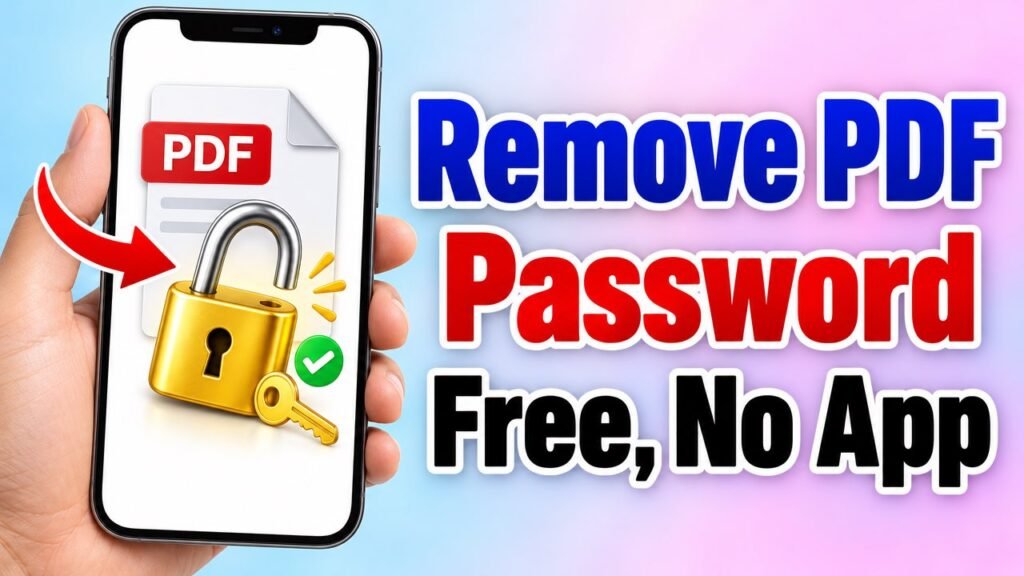
Banks, mobile companies, insurance companies and offices often send PDFs that are locked with a password: bank statements, credit card bills, salary slips, policy papers. Typing the password every time you open the file gets tiring, and some apps or printers cannot open locked files at all. With the free Formoni Unlock PDF tool you can remove the password from a PDF in a few seconds, on your phone or computer, as long as you know the password. No app, no signup, and your file and password are not uploaded anywhere.
How to remove a password from a PDF, step by step
Step 1: Choose the locked PDF
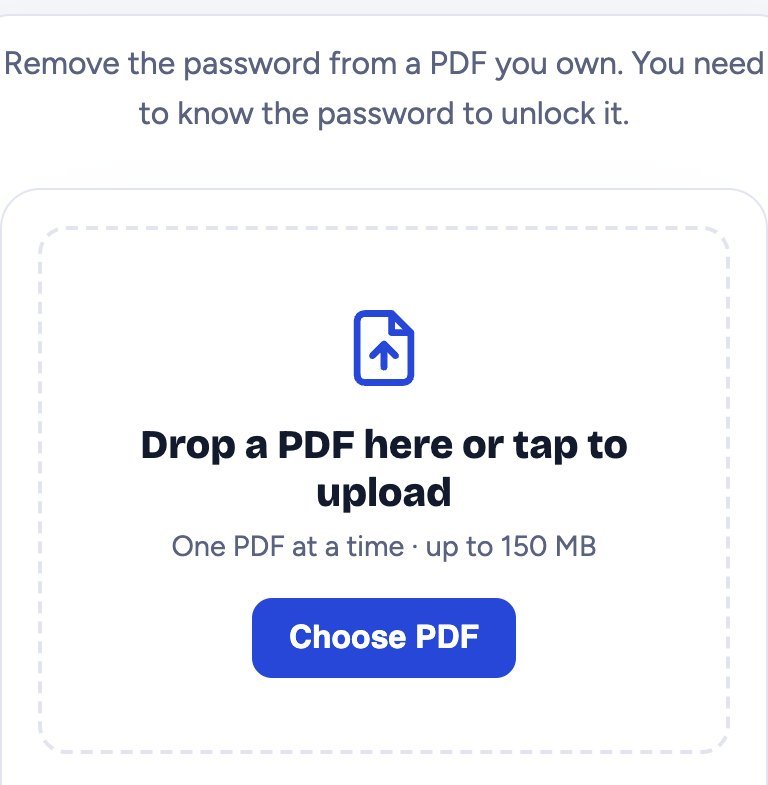
Open Unlock PDF and tap Choose PDF. Pick the locked file (up to 150 MB). The tool shows password protected next to the file name.
Step 2: Type the password
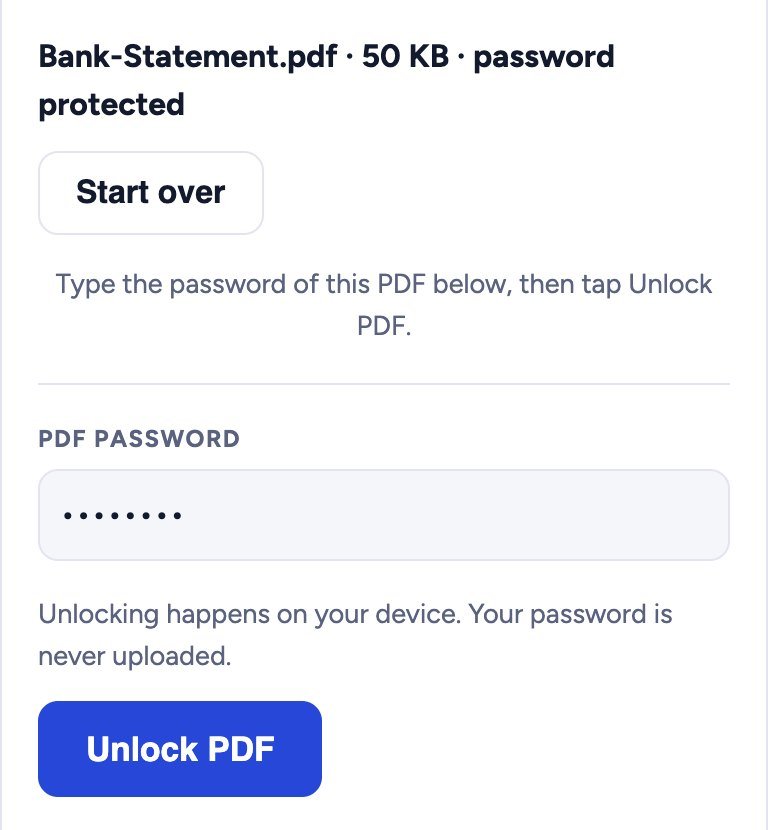
Type the password of the PDF in the PDF password box. It is the same password you type to open the file. Capital and small letters matter: RAVI1990 and ravi1990 are different passwords.
Step 3: Unlock and download
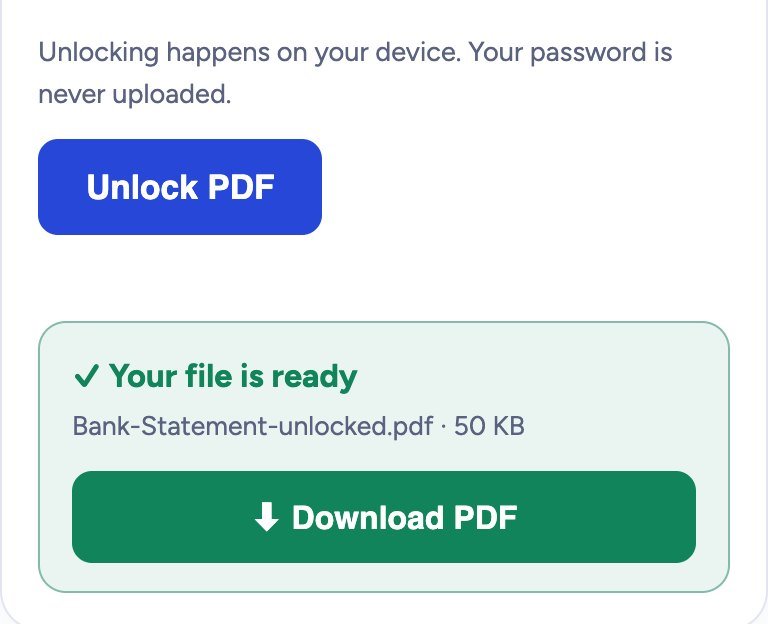
Tap Unlock PDF. A green box says Your file is ready; tap Download PDF. The new file is named like yourfile-unlocked.pdf and opens without any password. Pages, text and images stay exactly the same.
It says “Wrong password”?
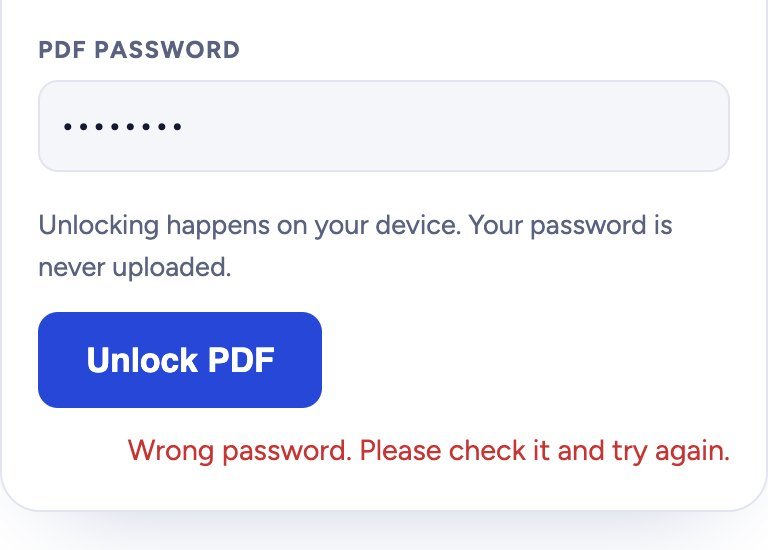
Then the password typed does not match. Check these:
- Capital and small letters: try the password exactly as given in the email or SMS.
- Extra spaces at the start or end.
- For bank statements and bills, the email that came with the PDF usually explains the password, for example a mix of your name and date of birth. Read it again.
PDF opens but cannot be printed or copied?
Some PDFs open without a password but block printing, copying or editing. Choose such a file in Unlock PDF and the tool says it has restrictions. No password is needed: just tap Unlock PDF to get a copy without them. Do this only for files that are yours or that you are allowed to use.
Can it unlock a PDF if I forgot the password?
No. Formoni Unlock PDF does not guess or break passwords. It only removes a password you already know. If you forgot it, ask the sender (your bank, company or office) to send the file again or tell you the password.
Is it safe?
Yes. Everything happens inside your own browser. Your PDF and its password are never sent to our server, so nobody else can see your bank statement or documents.
Tips
- Keep the original locked file too, in case you need it later.
- Want to share the unlocked file safely? Put your own new password on it with Protect PDF.
- Need it smaller for email or a portal? Unlock first, then use Compress PDF (a locked PDF cannot be compressed).
- Need only a few pages, like one month of a statement? Unlock first, then use Split PDF.
Frequently asked questions
Is Unlock PDF free?
Yes. It is completely free, with no signup, no daily limit and no watermark.
Does it work on a phone?
Yes. It works on Android phones, iPhone and computers in Chrome, Edge, Firefox and Safari. No app is needed.
Will the unlocked file look different?
No. Only the password is removed. In rare cases, when a file uses special protection, the tool saves the pages as images and tells you so.
Is it legal to remove a PDF password?
Yes, for your own files and files you are allowed to open, like your own bank statement. Do not use it on files that are not yours.
Can I put the password back later?
Yes. Use Protect PDF to lock any PDF with a password of your choice.
Conclusion
Removing a known PDF password takes a few seconds: choose the PDF, type its password, tap Unlock PDF and download. No app needed, and your private documents never leave your device. Try it now: the free Formoni Unlock PDF tool.